




How to Set Up Passkeys for Google, Apple, and Microsoft Accounts in 2026
A passkey can make signing in easier while reducing some common password risks. Instead of typing a password each time, you may unlock with a fingerprint, face check, or device screen lock. But you still need a safe way to recover your account if a phone is lost. This guide explains how passkeys work, how to set them up on common accounts, and what to check before removing old sign-in methods.
The steps are based on official Google, Apple, and Microsoft documentation reviewed in October 2026. Screens and options can change by device, browser, and account type. Only create a passkey on a device you trust. Do not use a shared public computer as the place to save a personal account passkey.
What is a passkey in plain English?
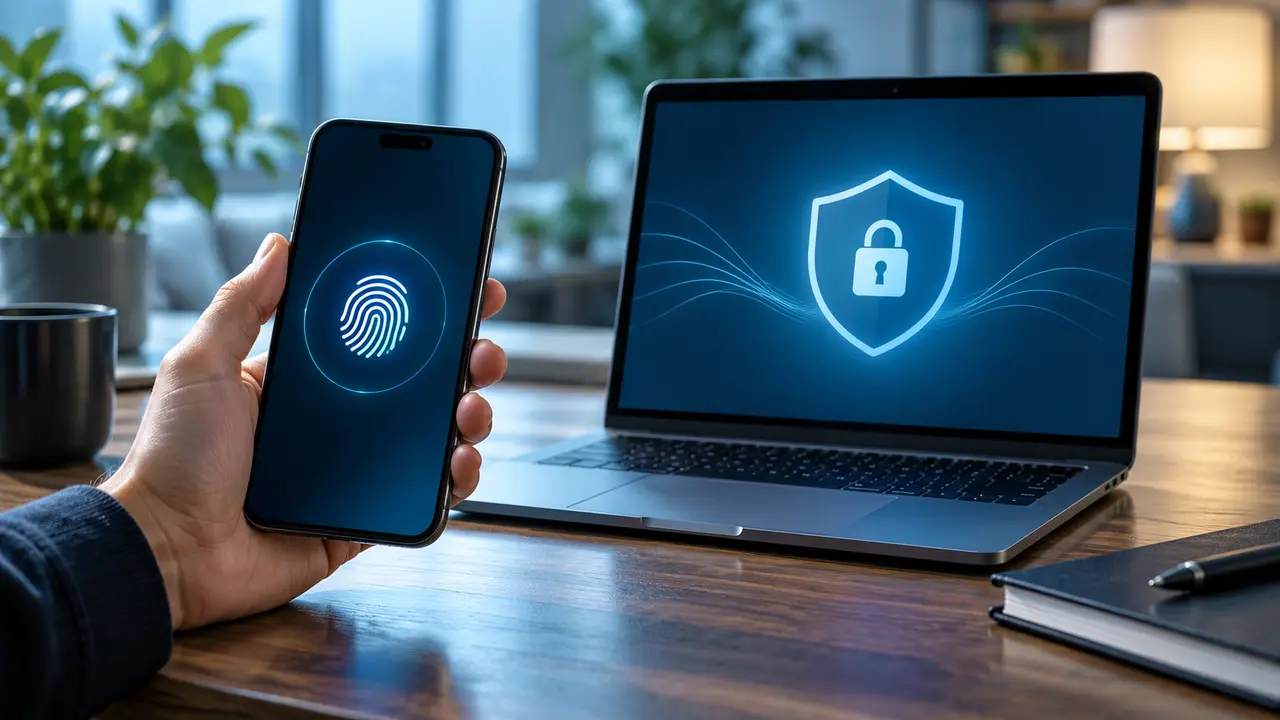
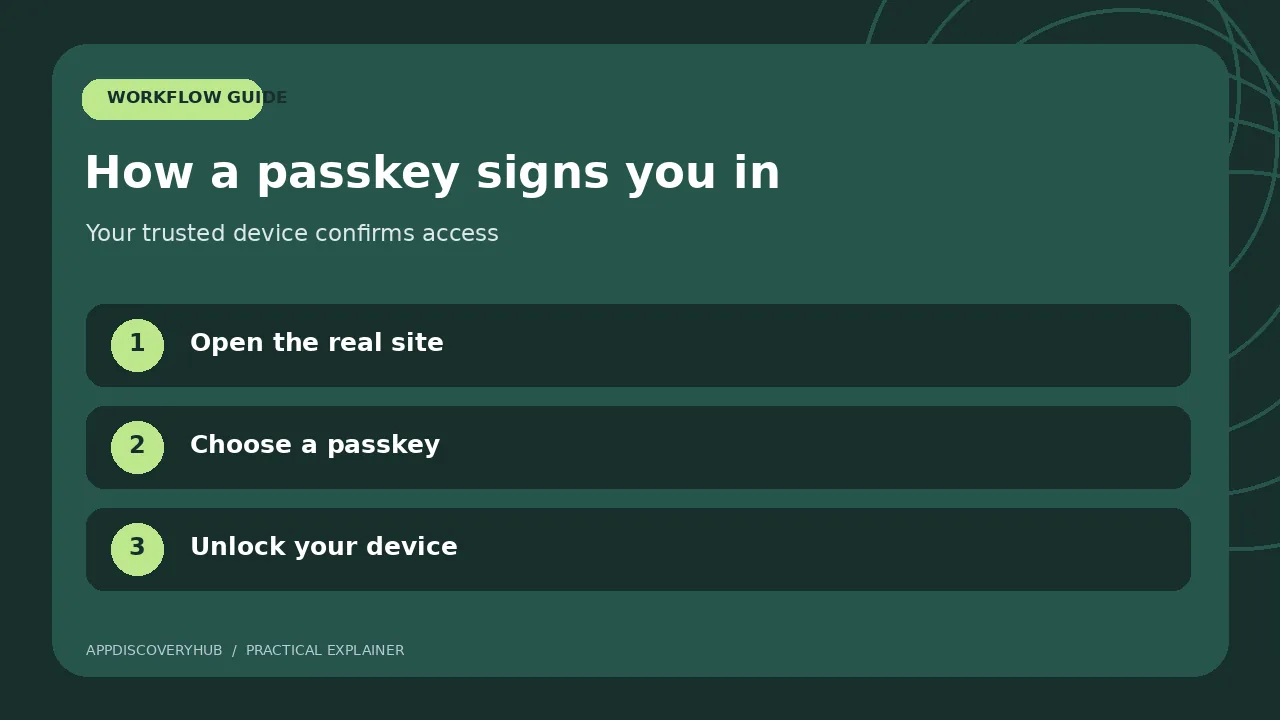
A passkey is a sign-in credential tied to a device or secure credential manager. When a site asks you to sign in, you confirm with the device’s normal unlock method. The site does not need you to type a reusable password for that sign-in. This can help protect against fake sign-in pages that steal passwords.
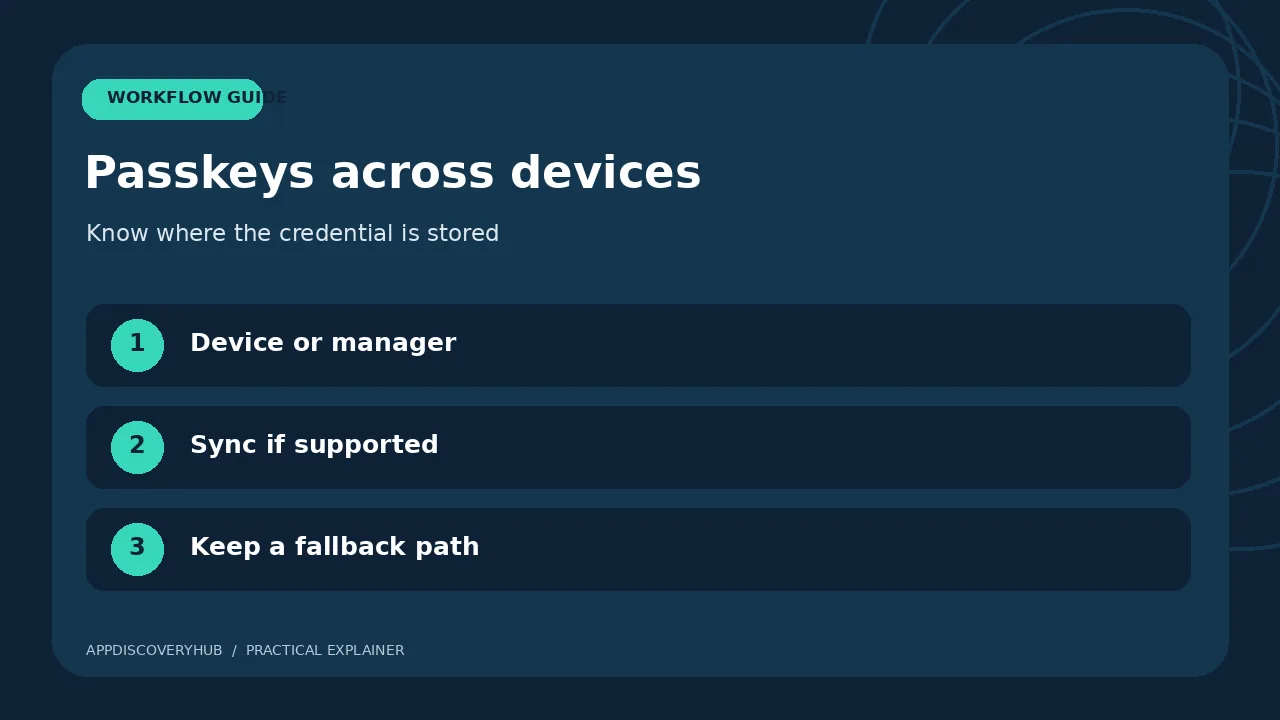
Microsoft’s passkey explanation describes how passkeys may be saved to a device or synced through a credential manager. Some services also let you sign in on another device by approving a prompt or scanning a code from a trusted phone.
A passkey does not make a stolen unlocked phone harmless. Google warns that someone who can unlock a device with a saved passkey may be able to reach the account. Keep a strong device lock and do not share your unlock code casually.
Before you begin
Update your device and browser through official channels. Make sure the phone or computer has a secure screen lock. Review account recovery information, such as a current recovery email or phone number where appropriate. You should be able to recover the account if the primary device is lost.
Check whether your device’s credential manager syncs passkeys across devices. That may be convenient, but it also makes the security of the sync account important. Turn on available account protection and keep recovery methods current. Do not remove a working fallback until you have tested the new sign-in.
Set up a passkey for your Google Account
Open the official account settings
Sign in to your Google Account through its official site. Go to the security or sign-in options and find Passkeys. Google’s passkey setup guide documents the process and notes the risks of adding one to a device that other people can unlock.
Follow the prompts to create a passkey on your trusted device or credential manager. You may be asked to confirm your identity first. When the setup ends, sign out of a non-critical session and try signing in again. Check that the new method works before treating the process as complete.
Keep a safe recovery path
Imagine you lose your phone while traveling. The passkey on that device may not be available to you. If you have other trusted devices or a synced credential manager, you may still be able to sign in. But account recovery can take time if you did not prepare. Review Google’s recovery options before you need them.
Never give a stranger a sign-in code or approve a sign-in prompt you did not start. Passkeys reduce some attacks, but social engineering still exists. If a message tells you to set up a passkey through an unfamiliar link, open account settings directly instead.
Use passkeys on an iPhone
Apple’s iPhone passkey guide explains how supported apps and websites can create and use passkeys. Typically, you start on the service’s account or security screen, choose its passkey option, and approve saving it with the device. The exact wording depends on the service.
Apple’s Passwords app guide covers managing passwords and passkeys across supported Apple devices. On some versions, the Passwords app provides a direct place to review saved credentials. If you cannot find one, check whether you are signed in to the expected Apple account and using the right device or password manager.
Test on the devices you use
If you own an iPhone and a Mac, verify that passkey access works where you need it. If you share a household computer, do not create your personal passkey inside another person’s user profile. Each person should have their own secure account and device access where practical.
If you move to a new phone, use the provider’s official transfer and account recovery steps. A passkey in one ecosystem may not move automatically to a different password manager. Keep alternate sign-in options until you confirm that the new device can reach each important account.
Create a passkey for a Microsoft Account
Microsoft’s passkey creation guide covers personal and eligible work or school accounts. Open official Microsoft account security settings and look for the passkey option. The exact steps may differ if your organization manages sign-in methods.
Follow the prompts and choose the trusted place to store the credential. You might use a device or supported credential manager. When complete, test sign-in on a normal device and note any fallback methods. For a managed work account, ask your administrator before changing security settings if your organization has a specific policy.
Do not confuse the device PIN with your account password
A device PIN or biometric check may unlock the passkey locally. It is not the same as sending that PIN to the website. Never type your computer unlock PIN into a random web form that claims to be part of passkey setup. If a prompt seems unusual, stop and open the official account page directly.

Can a passkey replace a password everywhere?
No. Support varies by website, app, device, and account. Some services offer passkeys alongside passwords or other sign-in methods. Some may let you move toward passwordless access. Do not assume your whole online life becomes password-free after changing one account.
Use a reputable password manager for services that still require passwords. Create unique passwords and enable strong account protection. A passkey is one part of a safer sign-in routine, not a reason to neglect recovery email accounts or devices.
How to test passkey sign-in safely
Do not erase your old phone or remove every fallback right after setup. Open an ordinary private browser window or use a second trusted device. Visit the official service page, select sign in, and choose the offered passkey route. Check that the prompt appears on the expected device and that you can complete it.
If you use a code or QR-based cross-device flow, confirm that the request started from your own sign-in attempt. Reject unexpected prompts. When the test works, record which account and credential manager hold the passkey, without recording secret credential material in a plain note.
What if you lose the phone?
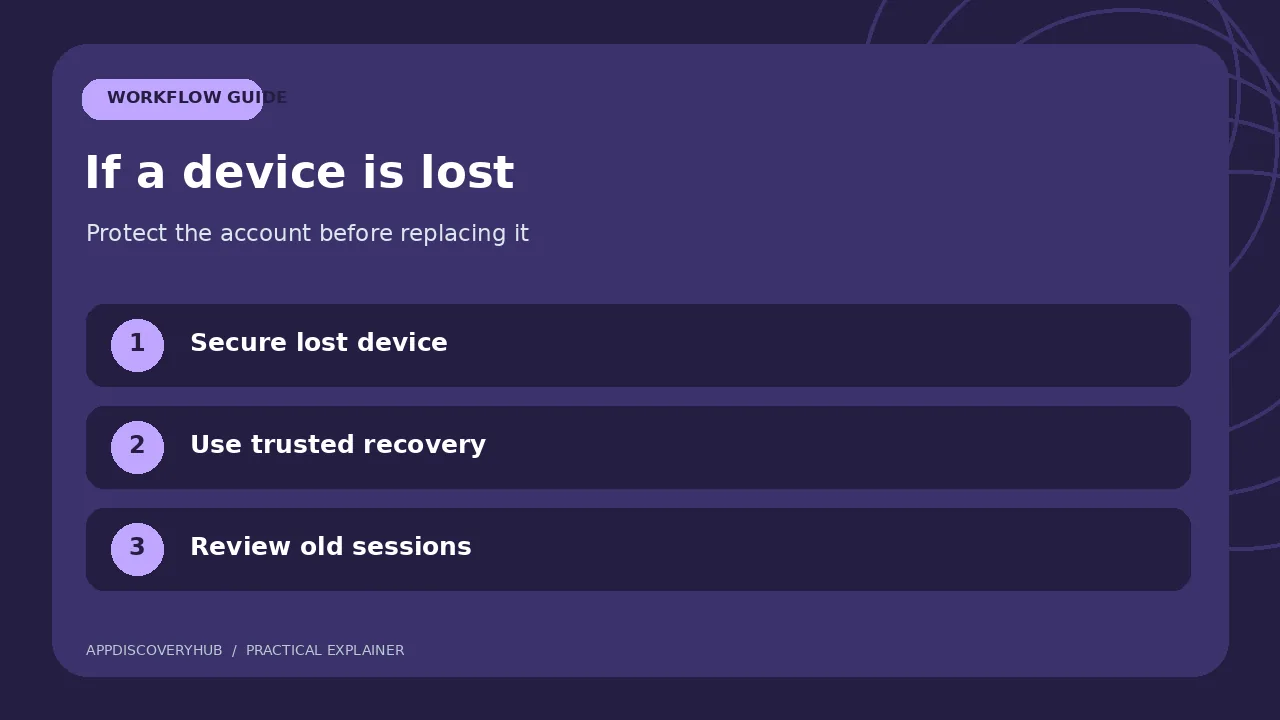
First, secure the lost device and account using the vendor’s official lost-device steps. If you have another trusted device with synced passkeys, try that. Otherwise use the account’s documented recovery process. This is why setup should include recovery planning, not just creating a credential.
Do not trust paid “account recovery” strangers who contact you online. Only use the official provider’s recovery paths. Keep your recovery email and phone number current. When access is restored, review signed-in devices and remove any lost device as directed by the provider.
What if the passkey prompt never appears?
Check that the site supports passkeys and that you are using the correct account. Update the browser and device, verify the screen lock, and confirm the credential manager is available. Try the official fallback sign-in method rather than repeatedly guessing. If the account is managed by work or school, settings may be controlled by an administrator.
If you see multiple passkeys for the same service, review them carefully. Do not delete a credential unless you know another working path exists. A careful sign-in test is safer than cleaning up every duplicate during a moment of confusion.
How passkeys help against phishing
A fake website can ask for a password and steal it if someone types one. Passkeys are designed to work with the real service’s identity, reducing the chance that a credential can be used on an impostor site. That is an important security improvement, but it does not stop every scam.
A scammer can still trick someone into sending money, sharing private information, or approving a harmful action after signing in. Keep checking website addresses, messages, and unusual requests. Strong sign-in tools work best with careful judgment.
Passkeys on shared and public devices
Never save a personal passkey to a public library computer or shared kiosk. If you need to sign in from another device, use a supported cross-device method from your own trusted phone where available, and sign out afterward. Avoid letting a browser remember private account details on a device you do not control.
At home, separate user accounts are useful when several people share one computer. Each person should use their own secure device lock. If someone else knows your device PIN, change it before relying on that device for sensitive passkeys.
Common mistakes
The first mistake is creating a passkey on an untrusted device. The second is ignoring account recovery. The third is deleting all fallback methods before testing another sign-in. The fourth is approving unexpected prompts. You can avoid these errors with a short setup checklist and one harmless test.
Another mistake is believing that passkeys protect all information after sign-in. They help with authentication. You still need safe sharing settings, software updates, and care with links or attachments. Security is a series of habits, not a single button.
Frequently asked questions
Are passkeys safer than passwords?
They can reduce risks such as stolen reusable passwords and certain phishing attacks. Device security and account recovery still matter. Use passkeys on devices you trust and protect their unlock methods.
Can I use a passkey on more than one device?
Often yes, through supported synced credential managers or cross-device flows. Availability depends on the service and your setup. Test before removing the old device.
Can someone use my passkey if they know my phone PIN?
Someone who can unlock a device with a passkey may be able to sign in to associated accounts. Use a strong, private unlock code and protect the device itself.
Should I delete my password after creating a passkey?
Do not rush. The service may still use a password for some recovery or sign-in paths. Follow official account guidance and confirm that you have a working recovery method.
Final checklist
Update your device, use a secure screen lock, verify account recovery, create a passkey through official account settings, and test sign-in. Keep your trusted devices and credential manager secure. A good passkey setup makes sign-in simpler without leaving you locked out when a device is lost.
Editorial note: This guide relies on official Google, Apple, and Microsoft documentation checked in October 2026. Options differ by account, software, and device.