




Canva vs Adobe Express in 2026: Which Design Tool Is Better for Simple Projects?
You need a clear poster, a social post, or a short flyer. Canva and Adobe Express can both help you make one without learning a full professional design suite. But the easy choice is not always the right one. One tool may have a template you like, while the other may fit the images and files you already use.
This comparison focuses on everyday work rather than a long feature race. We look at templates, editing, brand consistency, free plans, exports, and real use cases. Both products change often. Check official plan pages before choosing a paid feature. A simple design can be excellent without a subscription.
Start with the final result you need
Before opening either tool, decide where the design will go. Is it a square image for social media, a printable event flyer, a small menu, or a slide for a class? Write the message in one sentence. Then collect the date, location, contact details, and any brand colors that must appear.
For example, a community group may need a poster that says where and when a charity sale takes place. The most important parts are the event name, day, time, location, and a way to contact the group. A beautiful picture cannot fix a poster that hides those facts. Use the tool that makes clear layout easiest.
Canva: a broad template-led workflow
Good for fast starting points
Canva offers many templates and an editor aimed at common design tasks. Its official template guide shows how a starting layout can help you create a design. Templates save time when you have a blank page and no clear layout in mind.
Pick a template that matches the amount of information you have. If your flyer needs six lines of details, do not choose a layout that only has room for a short quote. Replace the sample text, check the reading order, and remove decorations that compete with the message. A template is a starting point, not a finished answer.
Be careful with paid elements
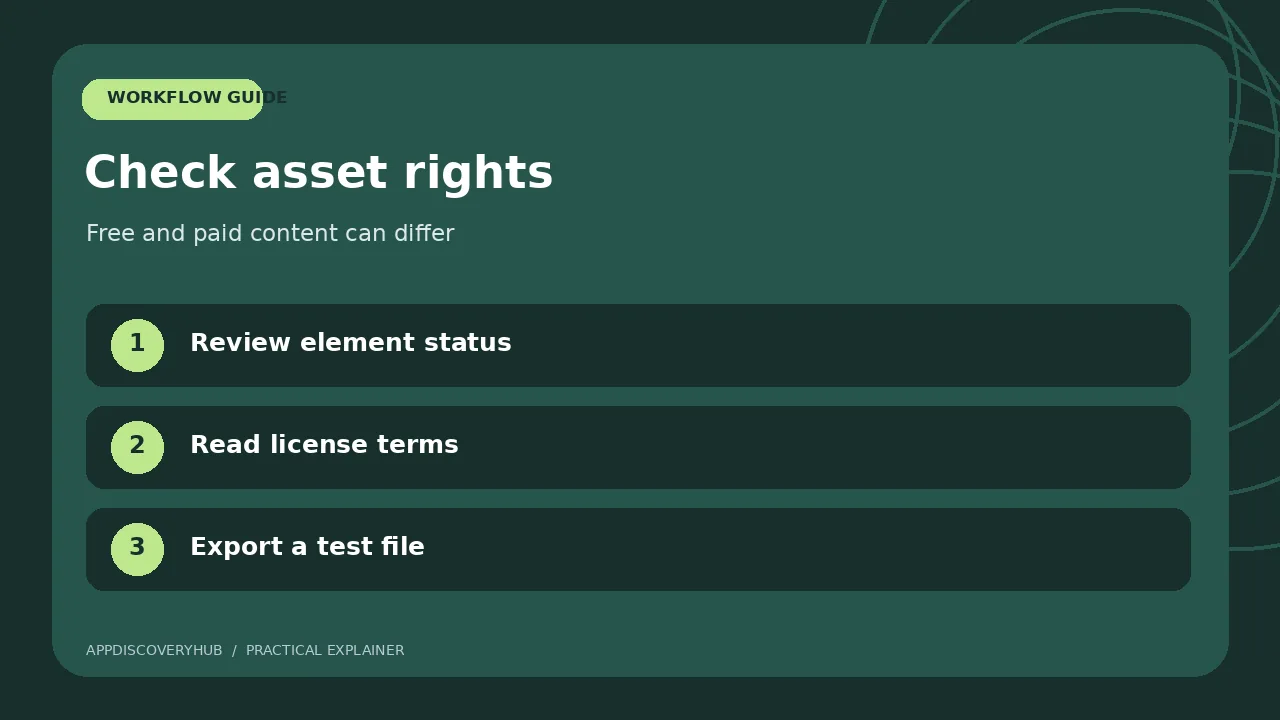
Canva has free and paid content. Its licensing guide explains the difference. If you use a premium asset in a free account, you may see purchase or watermark conditions when exporting. Before you spend time designing, inspect the images, icons, and fonts you plan to use.
A small local business could create a social announcement with a free template, its own product photo, and text. That may be all it needs. If the design includes premium artwork, compare the cost of licensing or upgrading with the option of using a suitable free asset. Do not assume every graphic shown in a template is free to export.

Adobe Express: a practical choice for Adobe users and quick content
Adobe Express is also built for making visual content with templates and accessible editing tools. Adobe’s official free-plan page sets out what free users can access. It can be a useful choice if you already work with Adobe products or prefer its editing flow.
Imagine a teacher who needs a slide-style graphic for a lesson. They could choose a simple layout, replace the sample text, add a relevant image, and export it. The most important check is whether the text is readable when projected. A feature-rich app does not solve small fonts or poor contrast on its own.
Premium tools are optional for many tasks
Adobe’s premium plan guide lists added features such as premium assets and brand tools. Those may help a team that designs often. They are less important for a person making a birthday invitation or a simple class graphic once a month.
Start with a free project. Export the file you actually need. If you can complete it at the right quality, you have learned something more useful than the number of premium features in a comparison table. Move to a paid plan only when a real job requires it.
Templates: how to avoid designs that look generic
Both tools make it easy to use a ready-made layout. That speed has a cost when everyone uses the same style unchanged. Make a few edits that serve the message. Use a real photo when you have one, choose colors that fit your organization, and reduce the number of font styles.
Say a bakery needs a weekend special poster. A stock photo may be fine as a placeholder, but a sharp photo of its own bread builds more trust. Put the price, date, and pickup detail near the main message. Keep the background quiet. The aim is not to look unusual at any cost; it is to help a customer understand the offer.
Editing photos and text
For simple designs, ask whether the editor lets you crop an image, adjust placement, change text, and keep alignment without fuss. Test those steps in both products. You should be able to make the main message bigger, shift an image, and export without hunting through menus.
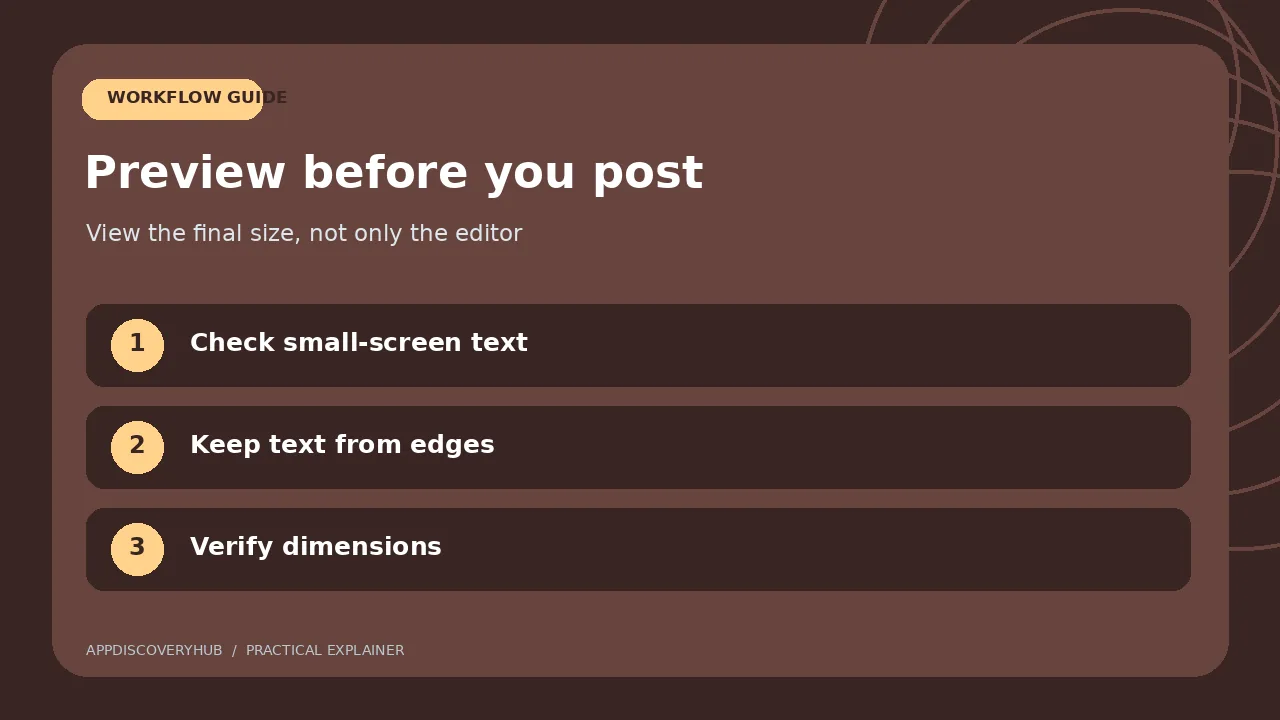
Use a high-quality source photo. An app cannot add real detail to an image that is too small or blurred. If your design will be printed, check the required dimensions and any print settings. If it will appear on a phone, preview it at the size a viewer will see, not only on your large desktop screen.

Brand consistency for small businesses
A business may need the same colors, logo, and type style across posters and posts. Paid brand tools can help, but a simple written guide also works. Record two main colors, one heading font, one body font, and rules for logo placement. Keep a clean base design you can duplicate.
For a real estate agent, consistency helps readers recognize the company. It does not mean every post must have an identical layout. A home listing may need a photo grid, while an open-house notice needs a clear time and address. Use the same visual identity but let the content shape the design.
Free plans and hidden costs
Do not compare “free” labels alone. Check which templates, stock assets, exports, storage, and collaboration tools your project needs. Canva’s upgrade guidance describes paid plan paths; Adobe documents its free and premium options. Terms vary by plan and may change.
If you design for a client, check commercial use and asset licensing before handing over files. It matters who owns the photo, icon, or font and what the license allows. A business logo also deserves care. Do not use a stock image as a unique brand mark without checking the relevant rules.
Export quality: check the final file
A design that looks crisp inside an editor can be blurry after export if the size or format is wrong. For a web image, check the pixel dimensions and file size. For print, use the printer’s requested format and resolution. Open the exported file in another viewer and zoom in on small text.
If a social platform crops images, keep the key words away from the edges. If a poster will be viewed from across a room, make the headline large. You do not need to know every design term to do this test. Look at the finished file from the reader’s point of view.
A twenty-minute side-by-side test
Choose one real project: a school event flyer or a product announcement. Make it once in Canva and once in Adobe Express. Use the same text and source photo. Give yourself ten minutes in each tool. Do not add paid effects. Export both and open them on your phone.
Ask someone who did not make the design to read it. Can they find the date and action in five seconds? Which file looks clear at normal size? Which editor took less work? Those answers matter more than a large list of features you may never touch.
When Canva may be the better fit
Canva may suit you when you want to explore many familiar template formats or quickly adapt graphics for routine content. A social media volunteer who needs a weekly event image could benefit from a repeatable layout. If your team already uses Canva well, changing tools may add training work with little gain.
Still, check template licenses and export settings. Avoid choosing premium assets you cannot use. Keep source images and logos in a safe place so you can reuse them outside any design service if needed.
When Adobe Express may be the better fit
Adobe Express may make sense if its editor feels natural to you or you already use Adobe tools. A teacher, small shop owner, or freelancer can use it for a quick post and then grow into other features when needed. The best way to know is to complete one real task with the free plan.
Do not switch merely because one service advertises a new AI feature. AI design tools can help suggest layouts, but they may produce odd text, inaccurate details, or art that does not fit your rights. Check every date, claim, and visual before sharing a public design.
Common mistakes
The first mistake is using too many fonts. Two are usually enough for a basic poster. The second is letting a decorative image hide the message. The third is exporting at the wrong size. The fourth is assuming that all template assets have the same license. These errors are easy to avoid with a short final review.
Another mistake is copying a brand’s visual identity too closely. Build a simple style of your own. Use your own logo and photos where possible. When you use third-party media, keep a record of its source and license. This is especially important for paid client work.
Frequently asked questions
Is Adobe Express free?
Adobe offers a free plan, along with paid options. Features and limits can change. Check Adobe’s official plan details before starting a project that relies on premium assets or tools.
Is Canva free for commercial use?
Canva has free content and paid content with specific license conditions. Commercial use depends on the asset and intended use. Read Canva’s official license terms before using a design for a client, product, or brand.
Which is easier for beginners?
Both are designed for accessible editing. The easier one is the tool where you can finish your own poster with fewer steps. Test one real design and compare the exports rather than deciding only from screenshots.
Should I pay for Canva Pro or Adobe Express Premium?
Only when a needed feature or asset saves enough time or improves a real job. Start with free plans, identify the missing tool, and check its license and price. Many simple designs do not need a subscription.
Final recommendation
Both Canva and Adobe Express are sensible choices for simple design work. Canva’s broad template flow may be a good match for regular social content. Adobe Express may fit an Adobe-centered workflow. Test the same project in both, check the file on its final screen or paper, and choose the editor that helps the message stay clear.
Editorial note: This comparison is based on official plan, template, and licensing guidance checked in October 2026. It does not claim a lab test of every premium feature.