






How to Back Up an iPhone in 2026: iCloud and Computer Methods Explained
Your iPhone may hold years of photos, messages, settings, and app data. A backup gives you a way to recover much of that information if the phone is lost, damaged, or replaced. But a backup is not a magic copy of everything. What it includes depends on the method and how data already syncs. The safest approach is to learn the difference, make a backup, and check that it finished.
This guide walks through iCloud and computer backups in plain steps. It also explains encrypted local backups, common errors, and how to prepare for a new phone. Apple’s current backup methods guide is the primary source for the details. Menus can vary by iOS version, so use Apple’s instructions for your device if labels differ.
First, understand backup versus sync
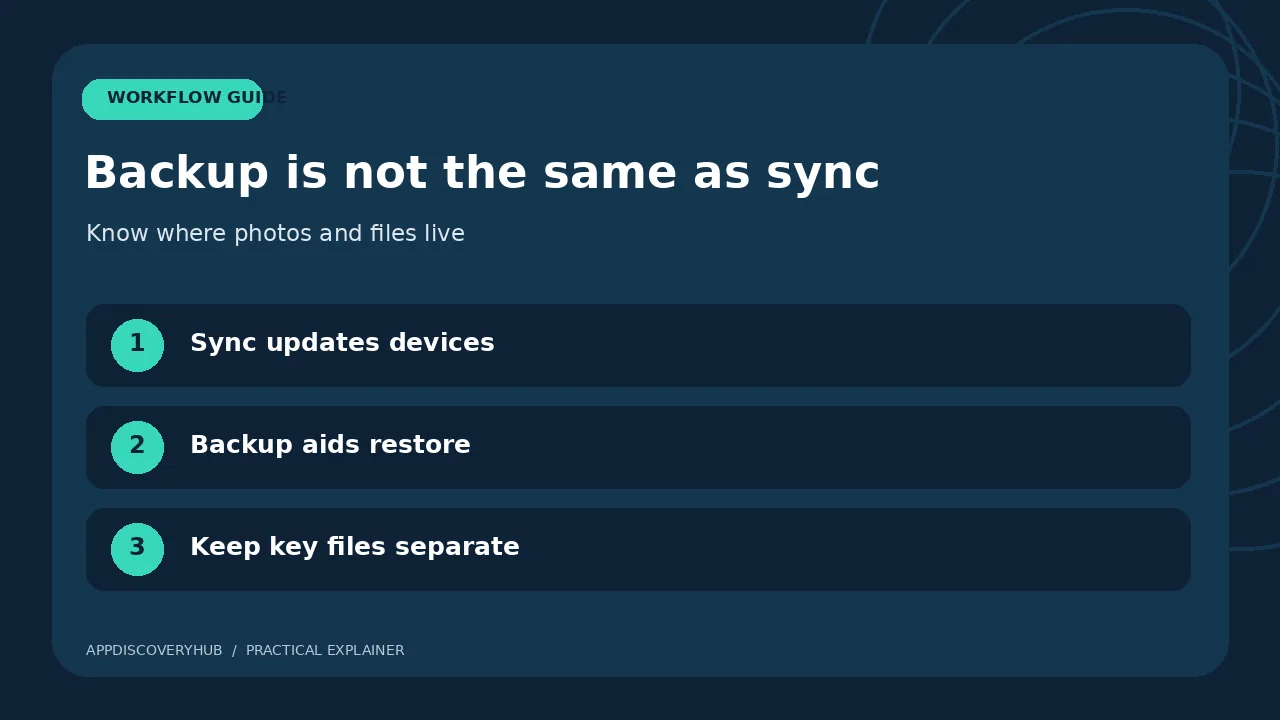
Sync keeps certain information current across devices or in a cloud service. Backup saves a set of information so you can restore a device later. These are related but not identical. For example, photos that already sync to iCloud Photos may be managed through that sync service rather than copied into the iCloud device backup in the same way.
That matters if you delete something by mistake. A synced deletion may appear on other devices. Do not assume your last device backup contains a separate permanent copy of every photo or file. If a photo library is irreplaceable, also consider a separate copy using a trusted export or storage method.
Method 1: Back up with iCloud
Check your Apple account and storage
Open Settings on your iPhone and go to the Apple account section. Look for iCloud and iCloud Backup. Confirm that you are signed in to the account you intend to use. Check available cloud storage. If the backup needs more space than is free, it may not finish. You may need to free space, manage what is included, or choose a suitable storage plan.
Apple’s iPhone backup guide describes the current controls. Follow the on-screen options to enable iCloud Backup and start a backup. Keep the phone on reliable Wi-Fi and power as needed while the process runs. A large first backup may take longer than later ones.
Verify the result
Do not stop after tapping “Back Up Now.” Wait for the process to finish, then check the displayed time of the last successful backup. Record that date if you are about to trade in the phone or reset it. If the time does not update, investigate the error before making any destructive change.
For example, someone upgrading on Saturday should back up on Friday night, then check the result again before handing over the old phone. The goal is to know that a current backup exists, not merely hope that automatic backup ran recently.
Method 2: Back up to a Mac or Windows computer
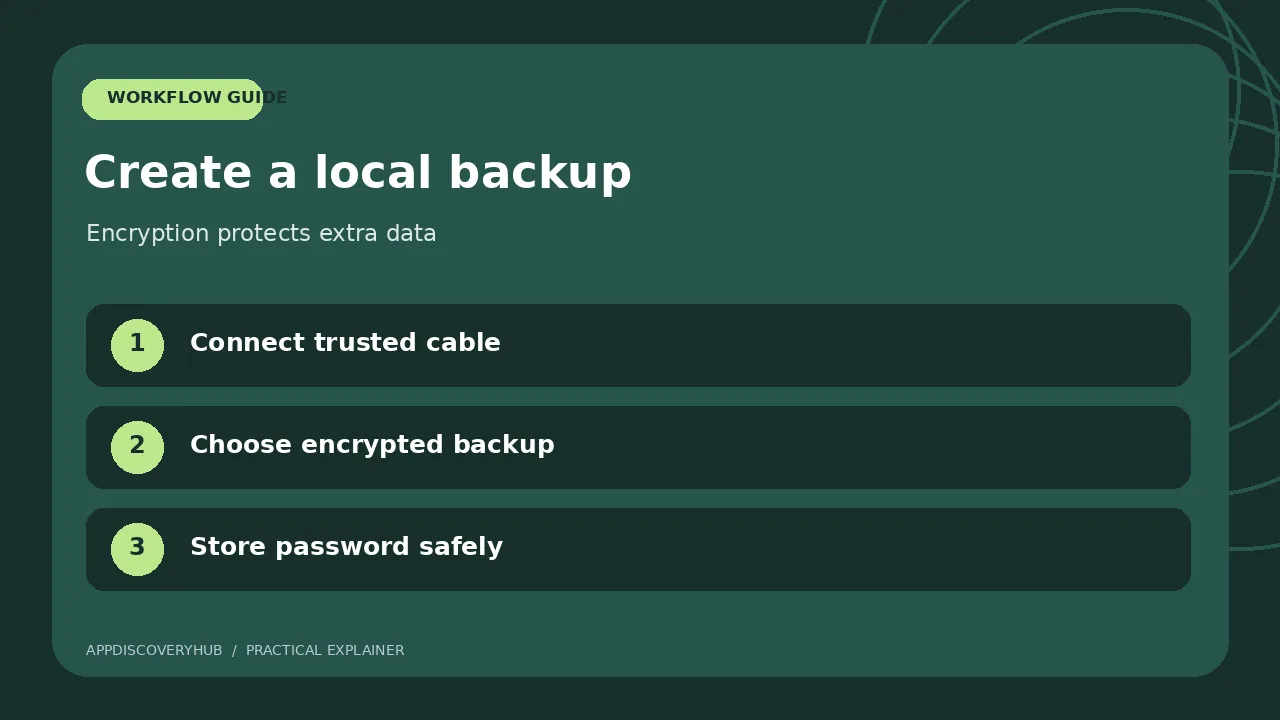
A computer backup can suit someone who wants a local copy or has limited iCloud storage. The app used depends on the computer and software: Finder on supported Macs, and the relevant Apple Devices or other supported Apple software on Windows. Apple’s official guidance explains the current setup.
Connect the iPhone with a trusted cable. Unlock it and approve the trust prompt if it appears. Open the correct device management app, select the phone, and find the backup controls. Choose a local backup. Do not disconnect the phone until the process completes.
Why encrypted backup matters
Apple’s encrypted backup guide explains that password-protected local backups can include certain sensitive categories that unencrypted backups do not. If you need those categories in a computer backup, consider enabling encryption. Choose a strong password you can safely retrieve later.
Be careful: losing the encrypted backup password can make that backup unusable. Store it in a reliable password manager or another safe location. Do not place the only copy on a note that you will lose with the phone. Test that you know which computer holds the backup and whether the backup list shows a recent date.
Which method should you choose?
iCloud is convenient for people who want a backup path that does not require connecting to a computer. A local computer backup can be useful when you want more direct control of the stored copy or have a suitable computer and enough disk space. You can use more than one method if that fits your needs.
Think about the risks. If your home computer fails and the only backup was on its internal drive, you may lose both working access and the backup. If your cloud account is inaccessible, a separate trusted local copy may help. A second backup method adds resilience when the information is important.

Before backing up, do three checks
Confirm that you know your Apple account credentials and have working account recovery options. Make sure the device has enough power and a stable connection. Review important apps that may use their own backup or transfer processes, such as authentication apps or services that store data separately.
Some apps require special transfer steps when changing phones. Do not assume an ordinary device restore will bring back every account login or verification code. Check those apps’ official instructions before resetting or selling the old device.
What if iCloud backup says there is not enough storage?
Start by checking available iCloud space and the size of the next backup. Review which apps need backup coverage. Do not remove data from backup settings without understanding what you would lose during a restore. A large app cache may be expendable, but a private document library may not be.
If you pay for cloud storage, compare the recurring cost with your actual needs. You can also use a computer backup when suitable. Do not rush into deleting photos or messages to make room. First identify whether they sync elsewhere and whether you have a safe separate copy.
What if the computer does not recognize the phone?
Check the cable and port. Unlock the phone and watch for the trust prompt. Update the relevant device software through official channels. Try another known-working cable if the connection remains unstable. Do not install random driver tools from search ads. Use Apple’s official troubleshooting steps when the device still does not appear.
If the computer has little free disk space, the backup may fail or never start. Check storage before a large transfer. Avoid making major system changes or deleting old backups until you have verified a newer usable copy.
How often should you back up?
There is no single schedule for everyone. A person who takes daily work photos or writes important notes may want frequent automatic protection. Someone who rarely changes the device may be less exposed, but can still lose valuable content. Use automatic iCloud backup when appropriate and check the last-successful date from time to time.
Always check a recent backup before a major iOS update, device repair, trade-in, reset, or transfer. These are moments when recovery matters. If a phone is already failing, do not delay a safe backup while experimenting with apps or cleanup tools.
How to confirm the backup is useful
A displayed backup date is a good first check, but it is not a full restore test. Review the backup method and what it covers. Keep account recovery information current. For especially important photos or documents, open a separate copy and confirm that the files are readable.
A full restore solely to test a backup can be disruptive, so do not erase a healthy phone just for a casual check. If you have a spare device and a genuine need, follow Apple’s supported restore procedure. Otherwise, confirm the backup status and make independent copies of irreplaceable files.
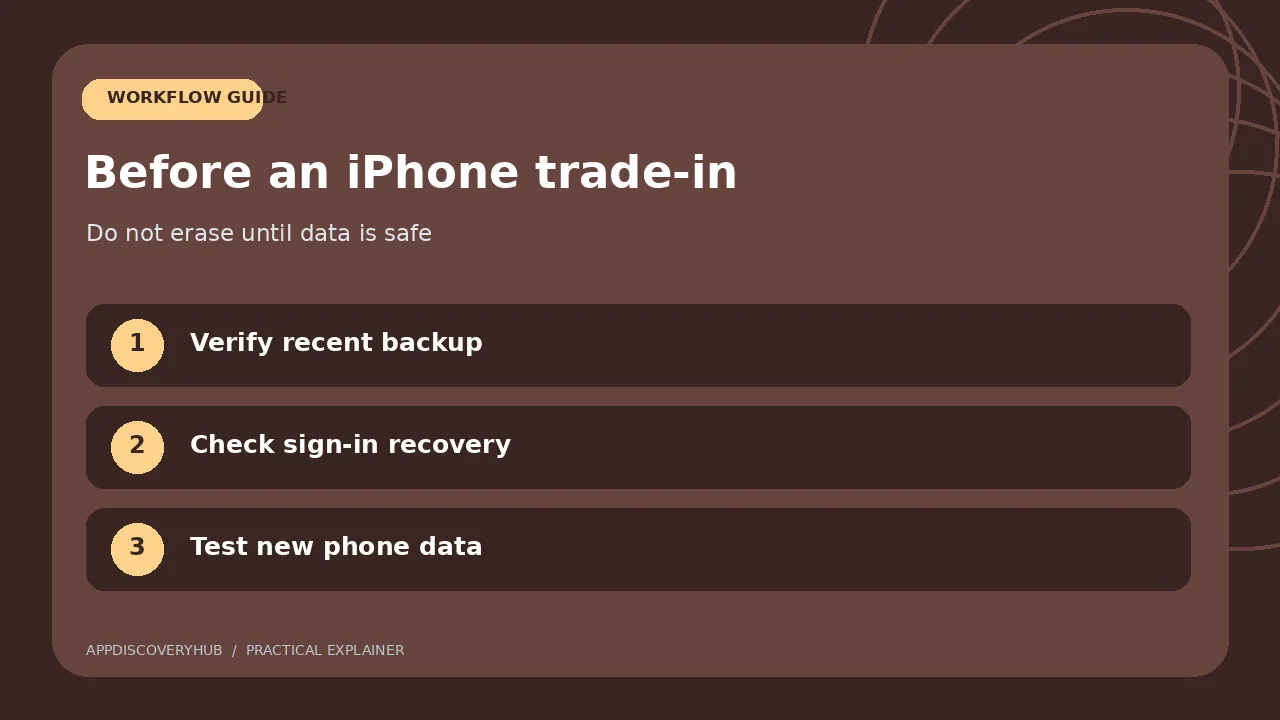
Before selling or trading in the old iPhone
Complete and verify a backup. Confirm that important accounts and authentication methods will work on the new device. Transfer or export data from apps that need special handling. Only then follow Apple’s official steps for signing out and erasing the old phone. Erasing is difficult to undo, so do not begin while backup status is uncertain.
Keep the old device until you have checked the new one when possible. Open your photos, notes, contacts, messages, and essential apps. Verify that you can receive sign-in codes. This is a more useful test than seeing the home screen appear.
Protect the backup itself
Backups can contain private information. Secure the Apple account with strong sign-in protection. Protect the computer with a device lock and suitable encryption. Do not store a local backup on a shared public computer. If you move a backup to external storage, keep that storage safe and test it before relying on it.
Review old backups before deleting them. A backup may be the only way to recover data from a device you no longer own. Do not remove it merely because the file is large. First confirm that a newer complete backup exists and that you no longer need the older recovery point.
Frequently asked questions
Does an iCloud backup save every photo?
Not in the same way when photos already sync through iCloud Photos. Understand the difference between sync and device backup. Keep an independent copy of irreplaceable images if you need stronger protection against accidental deletion.
Can I back up without paying for iCloud storage?
You can use a supported computer backup with enough disk space. iCloud backup may also work within the storage available to your account. Choose based on the data size and your access to a trusted computer.
Should I encrypt my computer backup?
Encryption protects the backup and is required for some sensitive data categories in local backups. Keep the encryption password safe. Without it, recovering from that backup may be impossible.
Can I reset my phone once backup starts?
No. Wait for the backup to finish and check the last successful time. Also confirm that important apps and accounts have the transfer or recovery steps they need before you erase anything.
The bottom line
Choose iCloud, a computer backup, or both based on your needs. Check the last successful backup time and understand what is included. Use encryption for local backups when needed, protect the password, and make a separate copy of irreplaceable files. A verified backup turns a phone upgrade from a gamble into a planned move.
Editorial note: Steps and backup limits are based on Apple Support documentation checked in October 2026. Menu names may differ by iOS release and device.