






Best Free Note-Taking Apps for Android in 2026: Keep, OneNote, and More
Your best note app is the one that helps you find a thought when you need it. A grocery list, a lecture page, and a work meeting all need different kinds of notes. Yet many people pick an app by counting features. A better way is to ask what goes wrong with your notes today. Do you forget to write things down? Can you never find what you saved? Do your phone and laptop show different versions?
This guide compares Google Keep, Microsoft OneNote, and Notion, then explains when a plain text file or your phone’s built-in notes app may be enough. Each has a different strength. You can start with free access, but some features and limits depend on the account or plan. Check the official details before moving important work.
Choose a note type before you choose an app
Think of three common needs. First, a quick capture: a phone number, a book title, or a shop list. Second, a reference note: class material or meeting details that you must find weeks later. Third, a shared page: a project plan that someone else will edit. A small note app is often best for the first. A notebook system handles the second. A shared workspace may serve the third.
Write one example of each note you use. Give each a useful title. Then ask whether you need offline access, easy search, or sharing. This takes two minutes and prevents a long app search. You may find you need one app for nearly everything, or two apps with clear roles.
Google Keep: fast notes and simple lists
What it does well
Google Keep works well for short thoughts, checklists, and notes you want to reach quickly. It feels more like a board of cards than a stack of long documents. Google’s official guide explains labels, colors, and pinned notes. These tools can help when your home view gets busy. A small number of labels is more useful than a label for every topic.
Suppose you plan a weekend trip. Make one checklist for packing, one note with a hotel address, and one note with places to visit. Label them “Trip.” Pin the packing list until you leave, then unpin it. This setup is simple and quick. You do not need a database or a full project system.
A better way to organize Keep
Start with three labels: Personal, Work, and Ideas. Make a note for something you truly need today. Add a title with clear words, not “Stuff” or “Important.” If you use a checklist, write each item as an action. Archive notes when they stop being active but might still be useful. Search can find them later.
Google’s search instructions show that Keep can filter notes by terms and features. This matters more than color coding a hundred cards. Try to find a note from last month. If the title and search terms work, your system is healthy. If they do not, improve the titles before adding more labels.
Where Keep can feel limited
Keep is not ideal for a large course notebook with many long chapters, tables, and nested sections. You can write long notes, but the card view may be awkward as your library grows. It also may not be the best place for a complex team handbook. For those jobs, test a notebook or page-based app instead.
Microsoft OneNote: a digital notebook for deeper work
Microsoft OneNote uses notebooks, sections, and pages. That model makes sense for students and people who collect detailed notes over months. A student could make one notebook for a school term, sections for each class, and pages for each lesson. It resembles a binder and can help readers who like a clear hierarchy.
For a client project, build a notebook with sections for meetings, research, and decisions. When a meeting ends, add a short page title with the date and subject. Put action items near the top. Do not rely on memory to recall which page contains a key decision. Use titles that a teammate would understand.
Syncing is part of the test
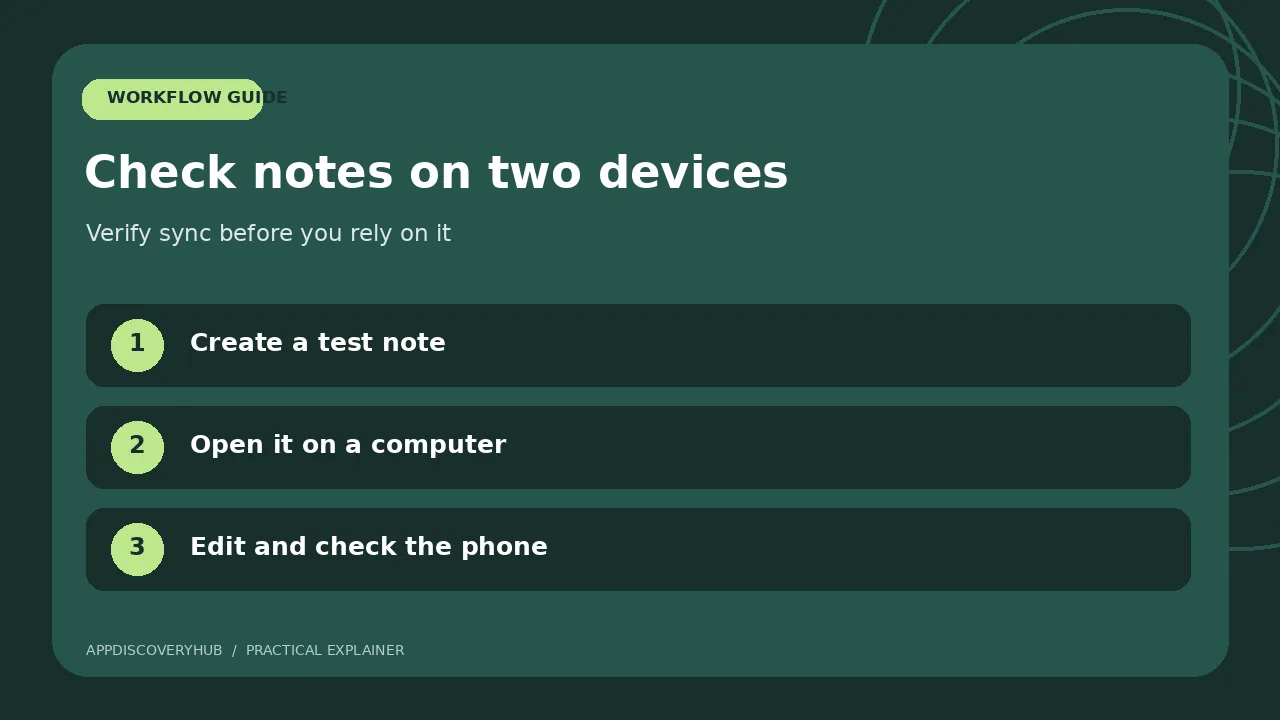
Microsoft’s OneNote sync guide explains how Android notebooks connect with OneDrive and how to run a manual sync. Before you depend on OneNote for important notes, make a test page on your phone. Open it on your computer and check that changes appear. Then edit it on the computer and inspect the phone. A successful two-way test is better than assuming everything is ready.
If a sync error appears, avoid editing several copies of the same page at once. Check your connection and account first. Keep a local copy of critical text until you are sure the cloud copy is current. For work accounts, your organization may control what you can sync or share.
Where OneNote asks more from you
Its structure can feel heavy if all you want is a grocery list or a few reminders. A notebook with many empty sections is not a sign of good organization. Start with one notebook and only two or three sections. Add more when you have enough notes to justify them.
Notion: shared pages for projects and plans
Notion suits people who want pages that combine notes with project information. You can build a reading list, a content plan, or a small team guide. Its flexible pages can be useful, but they invite a common trap: spending hours designing a dashboard instead of doing the work.
Imagine a small volunteer group that plans a community event. One Notion page can hold the event brief, meeting notes, and links to other pages. Give each section a clear purpose. Use a simple table only if it makes the plan easier to read. A page full of decorative widgets may look impressive but take longer to update.
Check offline needs first
Notion now provides guidance for using pages offline. Availability and behavior can vary by device, page state, and plan. If you travel through areas with poor service, test the exact pages you need before leaving. Put a phone in airplane mode, open the page, and check whether you can read and edit the content you care about. Never assume that every part of a complex workspace will work without a connection.
Notion may be too much for short personal notes. It can be a good home for a shared information hub. That is a different problem from capturing a reminder while waiting for a bus. If you use both Notion and Keep, assign each a clear role to avoid duplicate and stale notes.
What about Samsung Notes and plain text?
Your phone may already have a notes tool that fits your routine. Samsung Notes can be useful for people in the Samsung device ecosystem, especially those who prefer handwriting on supported hardware. Before switching to a new app, open your current notes app and test search, export, and syncing. Those basic jobs matter more than a long feature sheet.
Plain text can also be enough. A file with a clear name such as “home-repair-checklist.txt” is easy to read and move. This can suit technical users who value portability. The cost is that you must handle storage, backup, and sync on your own. Do not choose it only because it sounds simple; choose it if you can maintain the files safely.
Which app fits your day?
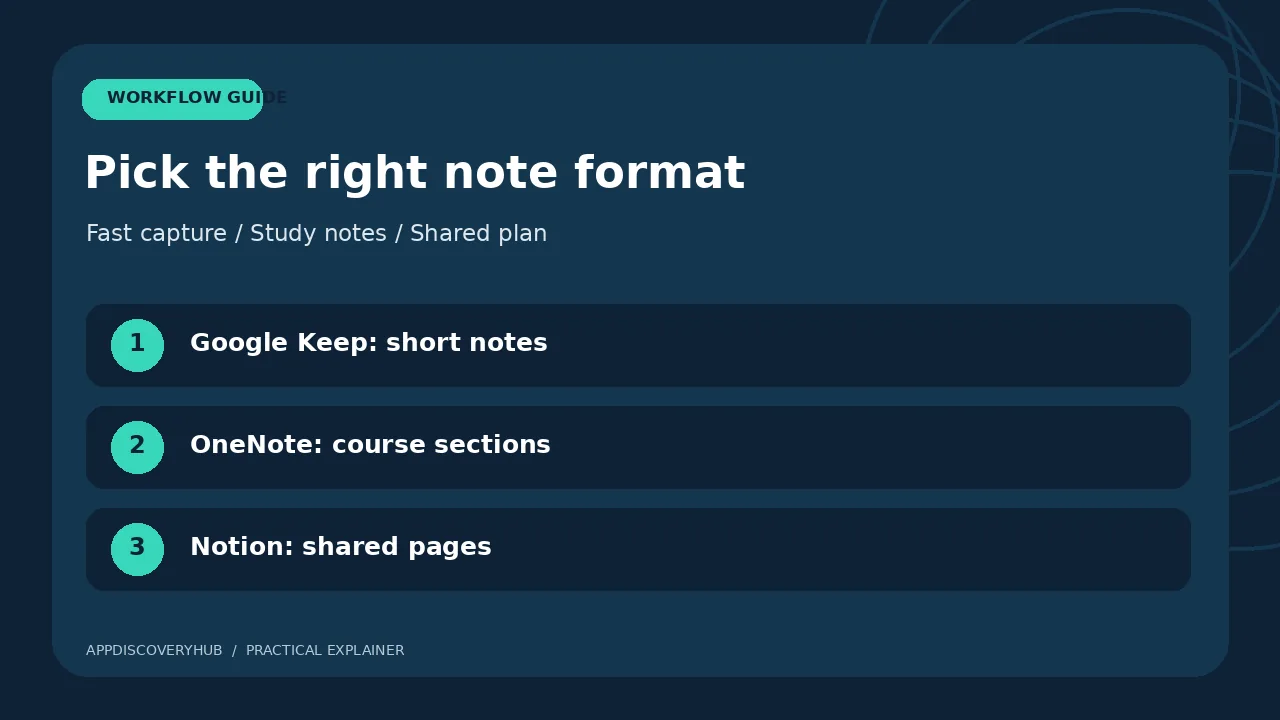
If you write quick lists and small thoughts, start with Keep. If you attend classes or manage detailed meeting records, OneNote may be a better fit. If several people need a shared project page, consider Notion. If you work mostly on one Samsung phone, test Samsung Notes before moving data. There is no single winner for every person.
Consider a nurse who keeps personal study notes, a student who records lecture content, and a manager who shares a team plan. The nurse may like Keep for short flash notes. The student may prefer OneNote’s sections. The manager may value Notion’s shared pages. The important point is the shape of the information, not the brand name.
How to move notes without losing them
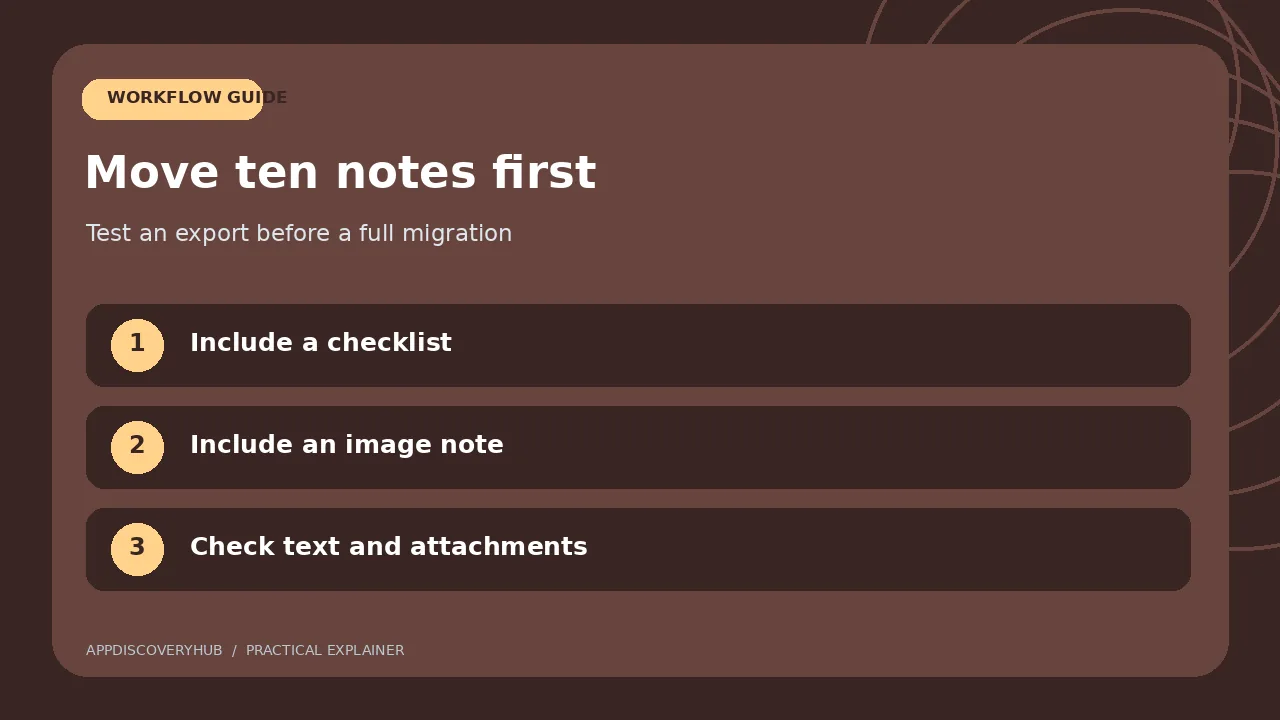
Migration is where many good intentions go wrong. It is tempting to move everything in one evening. A safer approach is to test with ten notes first. Choose a long note, a checklist, one with an image, and a shared note if you have one. Export or copy each note using the official options. Then open it in the new app and inspect the text, order, and attachments.
Keep your old account or local backup until the new notes are complete and searchable. Do not delete the original library as soon as you see a few copied titles. Search for one old note and open an image or attachment. Check dates and sharing permissions. A new app is not useful if moving it makes your notes harder to trust.
Use a seven-day trial instead of a full switch
For one week, use the new app only for new notes. Find one note each day with search. Edit a note on another device if you use one. Share one harmless note if teamwork matters. At the end of the week, ask what improved and what took more time. If the answer is unclear, your old tool may still be the right one.
How to keep notes private and safe
Notes sometimes include addresses, personal plans, client details, and private ideas. Review account access and sharing settings. Use a strong password and extra sign-in protection where available. Avoid storing passwords or recovery codes in a normal note unless you understand the protection it offers. A dedicated password manager is a better place for passwords.
If you share a page with a coworker, check whether the link is private to invited people or available to anyone with the link. Set the narrowest access that works. When a project ends, review who can still open it. Also learn how to export your notes before you depend on one service for years.
Make your notes searchable
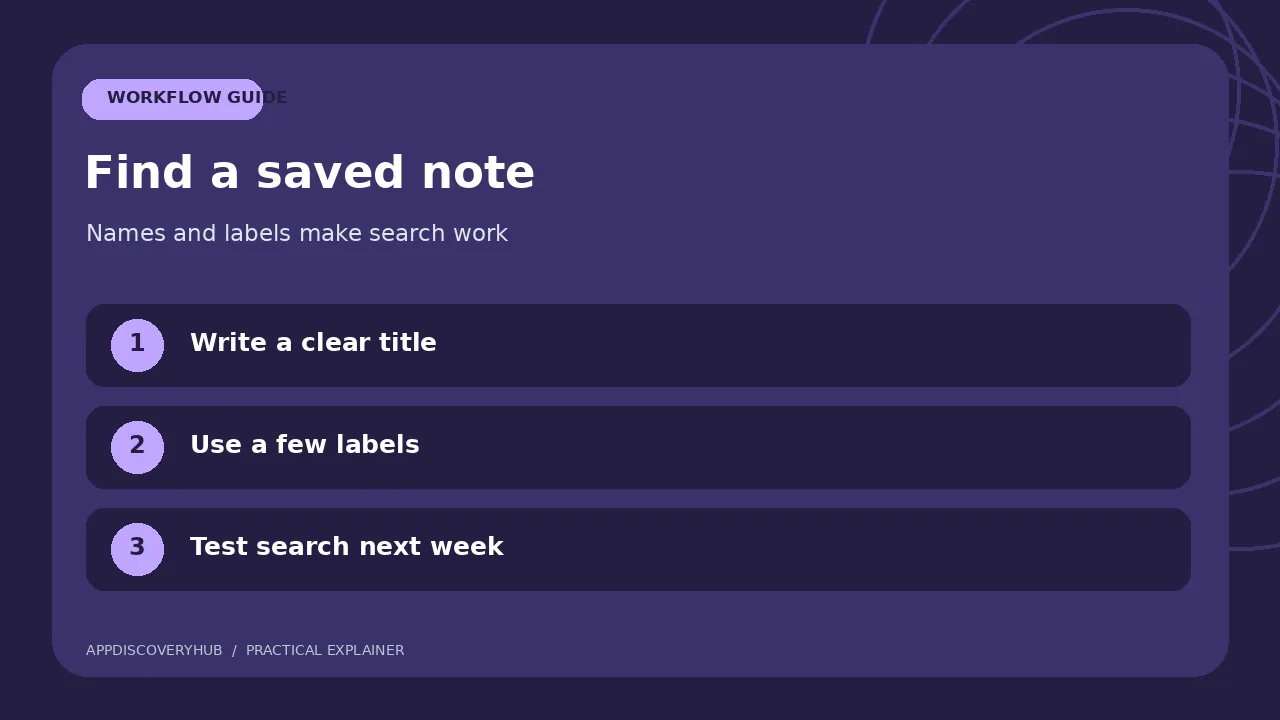
The most useful note habit is not a special folder system. It is naming notes so you can find them later. A title such as “Bike repair — rear brake parts” tells you what is inside. “Thursday” tells you almost nothing. Add dates when they help, but pair them with a real topic. Use words you would search for six months from now.
A second habit is to separate actions from reference. If a meeting note says “Send a quote by Friday,” put that action in your task system. Keep the full meeting note as context. This makes a note app less cluttered and helps prevent a real deadline from hiding in a paragraph.
Frequently asked questions
Is Google Keep good for students?
Yes, for quick lists, ideas, and short reference notes. Students who write long lecture notes may find OneNote’s notebook structure easier to manage. Try both with a real class topic before moving a full term of material.
Can I use OneNote on Android and a computer?
Yes. Microsoft’s help explains access and syncing across supported devices with an account. Test sync with a harmless page, especially if you use both a personal and work account.
Is Notion the same as a notes app?
It can hold notes, but it is also a flexible workspace for pages and projects. That flexibility is useful for a shared knowledge base. It can be more setup than you need for a short shopping list.
Which free notes app is most private?
Privacy depends on the service, settings, device, and the information you store. Read each provider’s policy, secure your account, and limit sharing. There is no reliable blanket winner for every type of note.
Final recommendation
Start with the simplest app that solves your actual problem. Keep is great for quick capture, OneNote for larger notebooks, and Notion for organized shared pages. Give your choice a week of real use. If you can write, find, and safely share the notes you need, that is a better result than having the most features.
Editorial note: This is a practical feature comparison based on official documentation checked in October 2026. It does not claim hands-on performance benchmarks or long-term personal testing.